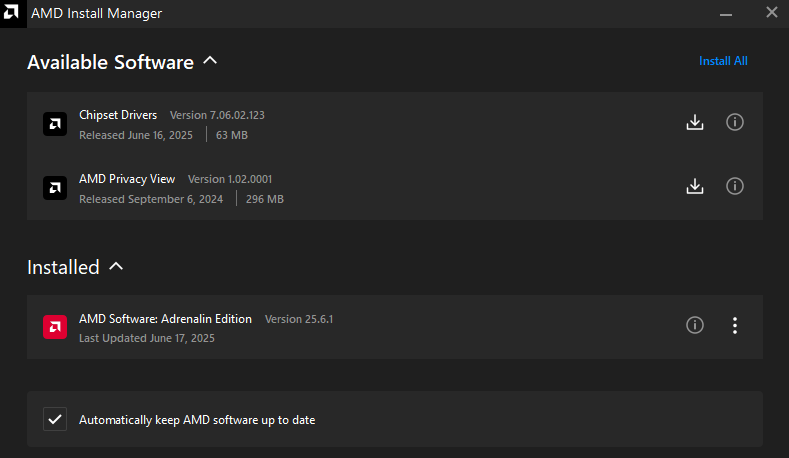
AMD Install Manager brings supported AMD software installations into a common management workflow. It can help obtain graphics and chipset updates and manage additional AMD components offered for compatible hardware. Its job is to organise those installations, not to replace a graphics driver or add missing hardware capabilities. It is useful when you want to see the available AMD software and decide which changes to apply to the computer.
Open it from the AMD update workflow
AMD documents access through Manage Updates in AMD Software. Selecting that control launches Install Manager, where available software is listed and a download control starts the chosen transfer. The AMD installation workflow also provides a Manage Downloads entry. The exact options can vary with the installed AMD software and the detected hardware, so a screenshot from a different system is not a guarantee of an identical list.
The supported route is the AMD software installation and update workflow, including its Auto-Detect and Install tool where appropriate. A separate universal standalone installer for Install Manager has not been established here, and the manager does not need to share the version number of the graphics package. Installing an arbitrary old package because its filename contains “Install Manager” is not a reliable way to obtain the current workflow.
Distinguish the manager from its downloads
The manager can coordinate different packages with different requirements. AMD Chipset Software serves the supported AMD processor platform; a Radeon display driver serves compatible graphics hardware. A computer can have an AMD processor without a Radeon card, or a Radeon card on a platform from another manufacturer. That difference affects the software offered and prevents one product label from proving compatibility with every package.
If you are uncertain which graphics adapter is present, GPU-Z can help identify it before you make changes. The name of the manager does not imply that it updates Intel, NVIDIA, printer or network drivers. Additional AMD software also has its own hardware conditions; the presence of an installation manager does not make every optional feature available on every PC.
Choose how updates are applied
AMD provides a setting to keep its software up to date automatically. You can disable that option in the management interface when you prefer to review changes yourself. Make this decision around how the computer is used: a work session, recording or long-running task is a poor moment to begin a driver replacement. Review the selected package and its release notes rather than assuming that every available item is necessary immediately.
The AMD Auto-Detect route supports Windows 11 version 21H2 onward and Windows 10 64-bit version 1809 onward. Those are requirements for that tool, not a promise that every driver it can offer supports those same minimums. The selected release may need a newer Windows build or a particular GPU generation. Check the package requirements before proceeding.
Finish the installation deliberately
Save work, close affected applications and allow the required administrator permissions. Review the offered components, start the selected installation and follow its result, including any restart request. A completed download alone is not confirmation that the driver has been installed and activated. Afterwards, verify the relevant device or task. If an item fails, keep its name and the error message; repeatedly installing unrelated AMD packages makes the original issue harder to identify.